
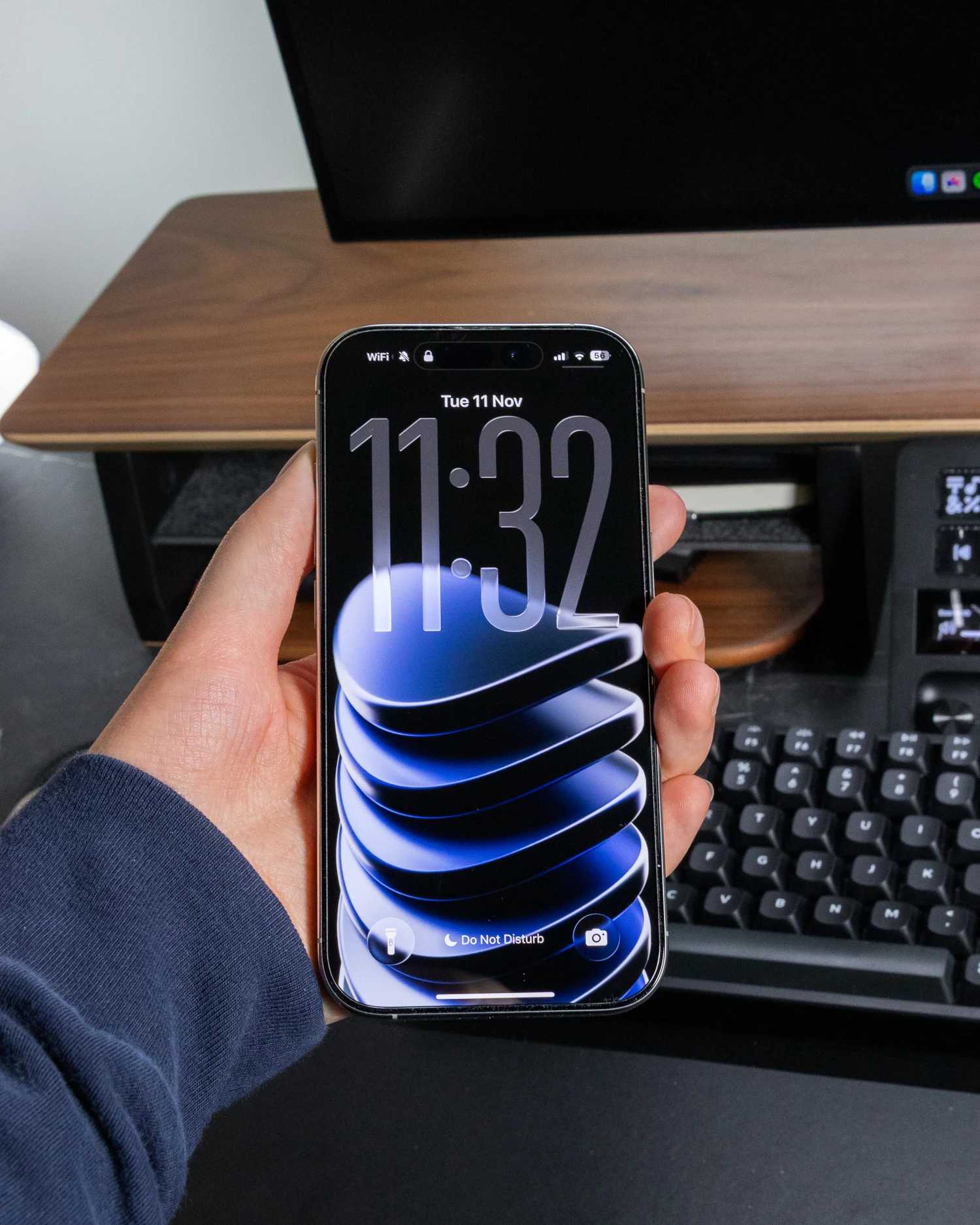
The CHROMA Wallpapers look incredible on iPhone, especially with the new iOS 26 Liquid Glass look. The subtle reflections, metallic shapes, and dark aesthetic create that premium minimal.
Each wallpaper in the CHROMA Wallpaper Pack was designed to look stunning on any screen size. With a few quick tweaks, you can make them look even better on your iPhone.
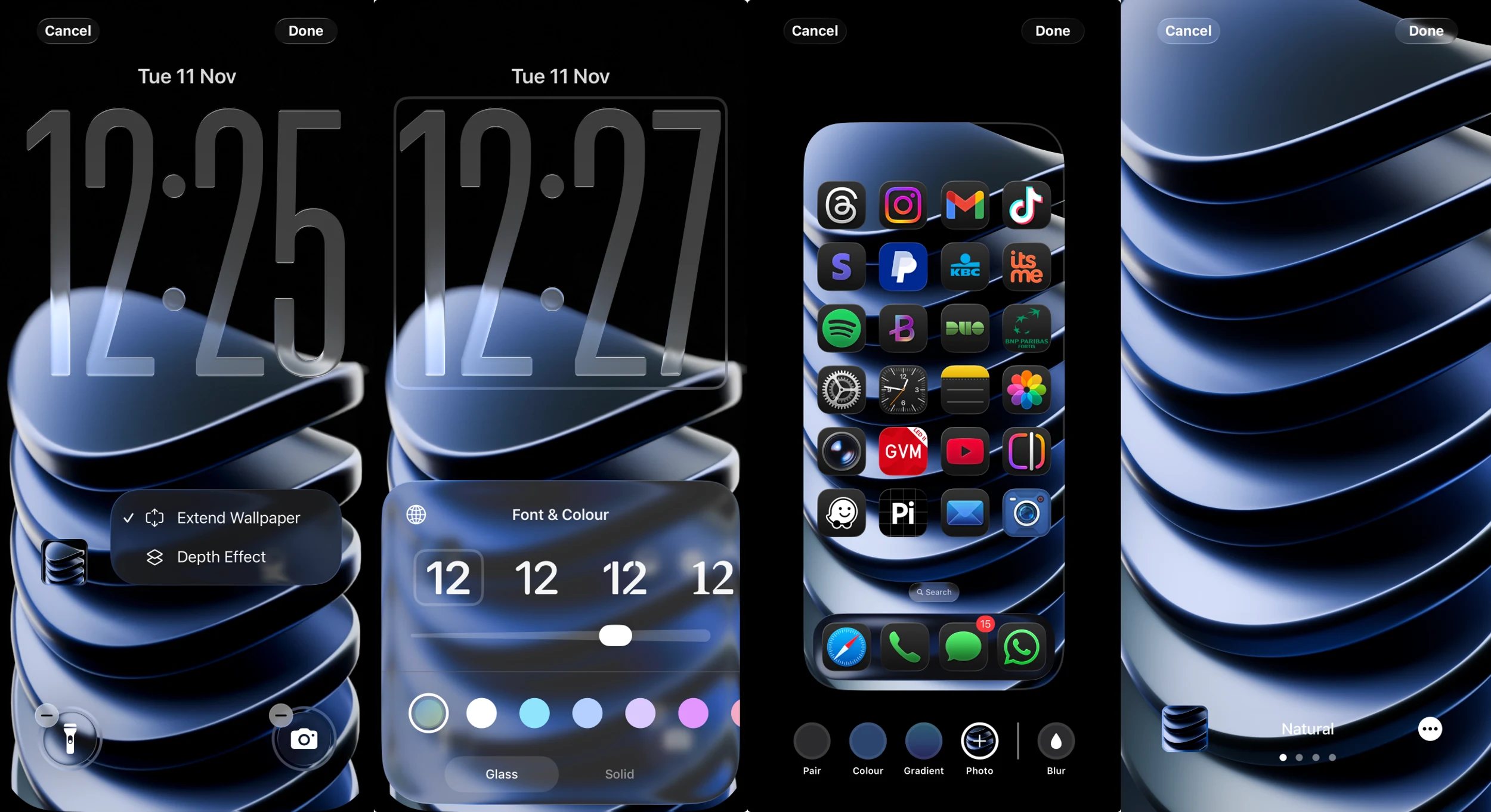
Lock Screen Settings:
- Clock size: around 80%
- Clock thickness: around 70%
- Clock color: transparent
- Special scene: on
- Extend wallpaper: on
- Depth effect: off
This setup keeps the wallpaper looking clean, enhancing the beautiful Liquid Glass design.
File name: CHROMA_MOB_36
Home Screen Settings
Once you’ve perfected the lock screen, set up your home screen for a seamless look:
- Add photo mode: select the same wallpaper again
- Extend wallpaper: off
- Slightly cropped in: the high resolution allows you to crop without losing quality
The high-quality 8K render means you can adjust and crop as you like while keeping perfect quality.
Final Thoughts
This is my personal setup and what I found works best, but feel free to experiment. Small tweaks in brightness, crop, or depth can completely change the look of your screen. If you take a few minutes to play around, you’ll find a version that fits your own style perfectly.
The CHROMA wallpapers were built around abstract metallic shapes. The dark aesthetic works beautifully with the Liquid Glass design, giving your setup a clean and premium look that works across every device.
You can download the CHROMA Wallpaper Pack here or access it for free inside the Digital Experience Bundle